Showing posts sorted by relevance for query PC. Sort by date Show all posts
Friday, February 27, 2009

ASUS Eee Top ET1602, The Computer Brief


Summary of trends in the PC dipelopori by Apple with the iMac product it presumably also tempt ASUS to join play. Although from the performance, the product has the ASUS Eee Top ET1602 can not be spelled out powerful, but at least if you only intend to explore the PC can connect to the internet and create office documents, this PC can accommodate your job.
ASUS Eee Top ET1602

View from the looks, Eee Top ET1602 this is indeed brief. Dibalut body with white, a PC with 16.6-inch screen of this could easily put you on the table without the need to seize too much space. Buffer placed on the back of the screen that also contains the innards of a PC is also quite robust and able to withstand the weight of a PC this good. Glance, this construction makes it look like the PC this photo frame.

There are some quite interesting things from this PC. The first is the screen that is equipped with a touchscreen feature. However, if you are not familiar with the features that are currently so this trend, ASUS is providing keyboard and mouse that is designed to match the PC unit itself. Unfortunately peranti second input is a little too small and a bit less comfortable when operated.

ASUS Eee Top ET1602

Because the processor dicangkokkan on the PC this is a 1.6Ghz Intel Atom N270, the performance clearly can not be equated with a PC that uses higher-speed processor. Can be spelled out, the ability Eee Top ET1602 is not far different with the netbook circulating in the market at this time. Memory capacity is also installed sufficient standard: 1GB. Fortunately ASUS still provide enough free space on your hard disk that is used (160GB).

Another thing that is interesting enough disediakannya six USB ports on this PC. At least you will not be lack of port while trying to connect this PC peranti that use USB connectivity. Ethernet connectivity has been installed on the PC even though this feature is vital as the DVD burner that can not be found even to this product.

ASUS Eee Top ET1602

In short, this PC can only accommodate light work only and will not be able to provide adequate performance if you intend to use it to 'fag'. But even so, Good Gear Guide the opportunity to test this product is still willing to give a high enough value even though that was about the reflective screen. Say, ASUS release of this product with the official price of U.S. $ 886 or about Rp9.750.000.

Specification: Processor: Intel Atom N270 1.6Ghz
Memory : 1GB
Chipset : --
VGA : Integrated
Screen : 15.6 inches (16:9) 1366 x 768 pixels
Hard Disk : 160GB, 5.400rpm
Optical Drive: N / A
Port : headphone Jack, Microphone Jack, RJ45, USB 2.0
Webcam : 1.3M pixel Web camera
Wireless : 802.11 n
Dimensions : --
Official Site : www.asus.com

source : kapanlagi.com
Friday, March 27, 2009

Lian-Li Intros New PC-B10 Computer Chassis


It would seem that not a week goes by without Taiwan-based PC chassis manufacturer Lian-Li coming up with some new model targeting either our living-room or office. This week, it launched the PC-B10 Mid Tower chassis, a product designed mostly for those users who are looking for a PC case that's both cool, as far as the temperature on the inside is concerned, and visually attractive.


Without a doubt, the looks of the PC-B10 will be the first thing anyone will notice, and that's because Lian-Li's new case has a very sleek, brushed aluminum look, which will certainly draw some attention.


The PC-B10 case is designed to house Micro-ATX or ATX motherboards and has 7 PCI slots, which are well ventilated with special vented brackets. And speaking of ventilation, it's very important to mention the fact that this PC case sports two fans on the front (1x 140mm at 900RPM + 1x 120mm at 1500RPM) and one rear 120mm at 1000RPM extraction fan, all of which feature removable dust filters.


Lian-Li PC-B10 - open
Enlarge picture
Furthermore, the chassis supports 5x 5.25-inch optical drive bays with one optional 1x 3.5-inch external and four additional internal 3.5-inch bays for HDD’s in an anti-vibration cage. The HDD cage is accessible from the left side panel, and each HDD is mounted with anti-vibration grommets to reduce noise from HDD vibrations. Also, the top panel is removable with the multimedia I/O ports on the top panel consisting of 2x USB2.0, 1x IEEE1394, as well as HD+AC97 Audio.

Now, for two issues you've most likely been waiting for, namely pricing and availability. Hence, as Lian-Li informs us, the new PC-B10 mid-tower PC chassis will be arriving in stores at some point towards the end of April, while the MSRP will be of around 250 US dollars, which is not exactly a small sum, but it's probably worth it, given the level of quality a Lian-Li case will provide (after all, we've been able to see first hand some of the company's cases at this year's CeBIT show and were quite impressed by the quality of the craftsmanship and finishing).

source : gadgets.softpedia.com

Thursday, December 18, 2008

Run Windows 7 in Virtual PC

Article Author : Ian
Trying out the Beta release of Windows 7 isn’t quite as difficult as you may think, as you don’t need to wipe or dual boot your existing Vista/XP installation to try out the new Microsoft operating system. It is entirely possible to run Windows 7 from within your existing Windows installation, at the cost of reduced performance. All of this is thanks to virtualisation technologies which allow you to run a computer within a computer.

There is a downside to this, as a virtualised PC normally uses emulated hardware – so the graphics card used to power Windows 7 will be nowhere near as good as a modern gaming card. This means you won’t be able to play recent games within the virtualised installation, but it is more than adequate for testing and playing with the new OS.

Many applications exist which allow you to create a virtual computer, but because Windows 7 is a Microsoft product this guides uses their “Microsoft Virtual PC 2007” software. You can download a free copy from:

http://www.microsoft.com/windows/pro.../overview.mspx

Once this is installed you will need to create a Virtual Machine from which you can install Windows 7 on. A box will popup the very first time you run the application which lets you configure the resource settings you wish to allow the virtual PC to have. As Windows 7 have very similar requirements to Vista, choose “Windows Vista” as the guest operating system (512MB ram, 64GB disk space):


You can leave the rest of the options as default, but if you have large amounts of memory you could always dedicate a higher proportion to Windows 7. Once the wizard is completed you will be returned to the Virtual PC console. Click “Start” to boot the virtual Windows 7 PC:


At the moment, there is no operating system installed so you will need to install this through one of two options. Firstly, you can select CD > Capture ISO Image from the menu which will allow you to use a CD image file as a virtual drive (if you download Windows 7 from the internet this is the most likely format). Secondly, you can mount a physical CD/DVD in the virtual machine (as Windows 7 Beta will likely be provided as a hard copy, this is the route this example will use). To do this, select CD > Use Physical Drive and choose the host drive.

Once you have mounted your Windows 7 disk, your virtual PC should restart and boot from the installation CD. Follow through the installation procedures as you would if this was a normal PC, and it will all be installed to your virtual PC:


When the installation process is complete, you will be able to access Windows 7 by starting the virtual PC like we performed in the first step. It will take a short amount of time to boot, but you can safely trial the Windows 7 Beta that Microsoft will be releasing in 2009 without having to perform a fresh install over an existing operating system:


It is worth installing the “Virtual Machine Additions” from the File menu once you have Windows 7 installed, this provides some useful enhancements to the OS. If you have problems with driver compatibility, try running Windows Update to search for updated drivers. This requires an internet connection which you are able to share from the host system with some additional configuration.

Other Article:
- How to Change the Windows 7 Default Control Panel View
-
How to Customize the View in the Services Window in Windows 7
-
Free Windows 7 Transformation Pack Download
- Free Windows 7 Themes For Vista and XP
- 20 New Features of Windows 7
- Free Download UxTheme Patch for Windows 7
Wednesday, July 15, 2009

5 ways to save money, boost IT value with PC power management

U.S. organizations waste approximately $2.8 billion annually and emit 20 million tons of carbon dioxide by not powering down idle PCs, according to the PC Energy Report 2009, issued by the Alliance to Save Energy, together with 1E, an energy management software company. For a company with 1,000 PCs, it means wasting $26,000 yearly, whereas an enterprise with 10,000 PCs would waste $260,000 and emit 1,871 tons of CO2 annually.


PC power management software can reduce the energy consumption of PCs as well as attached monitors during periods of inactivity. Using this software, IT can manage PC power settings over a network to drastically reduce power consumption, energy costs and carbon dioxide emissions.

Consider the following five business and technology best practices to slash your desktop power bill for greater operational efficiency and environmental impact:


1. Understand the business case.

“The first step is to create a business case and understand how much money you are spending,” says Doug Washburn, an analyst with Forrester Research. He recommends running scenarios by using Microsoft® Excel and performing simple modeling to determine potential cost savings.


Available tools include Forrester’s Online Green IT Baseline Calculator

and EnergyStar’s online calculator.


2. Understand your users.

“Users won’t tolerate downtime,” says Washburn. “It’s important to be smart about when to enforce power management.”


A successful program incorporates people and processes as well as technology. Map power management savings to user business requirements and the amount of downtime the specific business function requires. For instance, during the workday, power management may not be suitable for front-line employees, whereas in back-office locations, turning off monitors or placing PCs in standby mode after 30 minutes of inactivity may not be a problem.

3. Implement EnergyStar-standard Windows and Macintosh OS power management features.


Today’s desktops and notebooks incorporate many built-in power-saving capabilities such as “sleep” and “hibernate” modes that can significantly reduce the amount of energy consumed during inactive states.


The U.S. Environmental Protection Agency recommends placing monitors and computers into a low-power “sleep mode” after a period of inactivity. Simply touching the mouse or keyboard awakens the computer and monitor in seconds. Activating sleep features saves energy and money and helps protect the environment.


To maximize power savings, the EPA recommends setting computers to enter system standby or hibernate after 30 to 60 minutes of inactivity. The lower the setting, the more energy is saved: Set monitors to enter “sleep mode” after 5 to 20 minutes of inactivity; on laptops, activate these settings in the AC power profile, not just the DC (battery power) profile.


The average desktop PC wastes half of the energy it consumes,” says Pat Tiernan, executive director of the Climate Savers Computing Initiative. “By turning on a single computer’s energy-saving features, you can save up to $75 per year in energy costs and reduce your CO2 emissions by nearly half a ton.”


4. Evaluate PC power management software.

Evaluate power management software from vendors such as 1E, Symantec’s Altiris, BigFix, Avocent’s LANDesk, ScriptLogic and Verdiem. Determine pricing structure, features and functionality, including administration, reporting functionality and support for advanced power management such as “scheduled” or “always on.”


5. Communicate to the business.
A well-designed PC power management program provides an opportunity for IT to showcase its value to the business. Because 55 percent of IT energy consumption comes from outside of the data center, enterprise IT organizations are expected to turn to PC power management software, according to Forrester Research findings. [Source: Doug Washburn, “TechRadar for I&O Professionals: Green IT 1.0 Technologies,” Q2 2009, Forrester Research, June 12, 2009]

By Paula Jacobs
[via accelerateresults]

Friday, March 13, 2009

How to Install Windows from USB Flash Disk

Here is how to install Windows in a usb flashdisk , the article that I read in komputertrik.wordpress.com there are several steps dalm to install windows in usb flashdisk, The Sure there are the requirements to do all of that.
We can not just put the installer file from the Windows CD to flash disk. We have to make is known as flash bootdisk first. One thing that the BIOS is also crucial in the notebook / netbook / PC we will install should support booting via flash disk. In fact nearly all the new products already support this, but we suggest you check the BIOS of your PC first.

If you can, the following is a list of completeness you need.
1. A PC with a CD-ROM (for the process of preparation and file transfer)
2. CD Installer Windows XP or Vista
3. Application support form (available in three DVD editions InfoKomputer February):
a. USB_PREP8
b. PeToUSB
c. Bootsect.exe
4. Flash disk with a capacity of at least 1GB

Here's how to enter in to the Windows installer flash disk.

1. PeToUSB.exe to copy files in a folder USB_prep8.
2. Run the file usb_prep8.cmd with the double click. The file is located in the folder USB_Prep8. Note: If your PC using Windows XP2, you need to unblock the file to be run. How, right-click> Properties> Unblock
3. Later file a window will appear like the picture below.
4. Press Enter, and a window will appear.
5. Leave all the settings in the default (unless you want to change the drive label) and press Start. This will menformat your flash disk, so make sure no important files on the flash disk.
6. Once the process is completed, DO NOT close the window PeToUSB. Leave it open.
7. Open command prompt (caranye click Start> Run> cmd). At the command prompt panel, go to the folder where the file is saved bootsect.exe. Way, type "cd namafolder". For example, because bootsect.exe files in the folder bootsect located on the desktop, we type "cd desktop" and then "cd bootsect" (both without quotes).
8. If bootsect.exe already met, type "bootsect.exe / nt52 X:" (without quotation marks). Note: X: show flash disk drive for you, so first find out the name of the drive-nya. On our case, the name of L so that the drive is the command to "bootsect.exe / nt52 L:"
9. If step 9 is done correctly, a message will appear "Bootcode was successfully updated on all Targeted volumes." Close the window and command window PeToUSB. note: do not close the window USB_Prep8. USB_Prep8 window should remain open.
10. When you close the window PeToUSB, USB_Prep8 in the window will automatically appear as menu options under the picture. If not, try and press Enter.
11. At this stage, you actually just do the settings for Prep8, free way is to select the menu based on the number. You must change are:
a. Menu 1: select the drive where Windows XP (or your CD-ROM). I click 1, will be out later Explorer to select the drive. Select the name of the drive (on the PC is C).
b. Menu 2: Virtual TempDrive choose, or a virtual drive in your PC hard drive as a place to store data (before moved to the flash disk). Select the drive that is not in your PC, eg drive T.
c. Menu 3: to select your flash disk drive. Press 3 and select the flash disk drive that you want to enter Windows.
d. Menu 4: this menu is to run the next process. If you have run the 1 to 3, you immediately run this menu 4.
12. Will pop-up window that will immediately delete the temporary drive (which we do in the menu 2). Press Yes.
13. After that, the file transfer process is running the Windows installer. There are two processes going on in here. First the transfer files from a CD-ROM to hard disk, and the second from the disk to the flash disk. The length depends on the speed CD-ROM or flash disknya, and in our case about 30 minutes.
14. After that, we live Plug flash disk to the PC we will install, and set the booting priority to the flash disk. When switched on, there are two options available. Select option number 1 (TXT Mode Setup Windows XP).

After that, the installation process is running as normal, including the process re-booting. No you need to do here, just wait until the installation process is complete. To note is the flash disk can not be revoked until the process is complete (already signed in Windows).


by : Me
Saturday, December 27, 2008

20 New Features of Windows 7

Many have no patience to wait out the Windows 7 (W7), successor of Windows Vista. Not as Microsoft keep many new features W7, but semiua confidentiality has expired, Microsoft gives developers a lot about the leak leak-W7 in the PDC. TTehcnologizer the opportunity to try W7 seems that the OS is ...really quite prospective!

First, you must know that the W7 will not have a drastic change in terms of software architecture as Vista from XP - Microsoft have promised that the users meakukan upgrade from Vista will not have compatibility problems. Because the W7 does not change much in the background screen, Microsoft can focus on the development experience of the use of the OS itself and not on various technical aspects such as security and stability.

Most of the changes that are packed W7 seeks to improve the ease and convenience of users, and below are some of the new features W7 has seen demonstrations in the Microsoft PDC.

Other Article:
- How to Change the Windows 7 Default Control Panel View
-
How to Customize the View in the Services Window in Windows 7
- Run Windows 7 in Virtual PC
- Free Windows 7 Transformation Pack Download
- Free Windows 7 Themes For Vista and XP
- Free Download UxTheme Patch for Windows 7

2. Taskbar

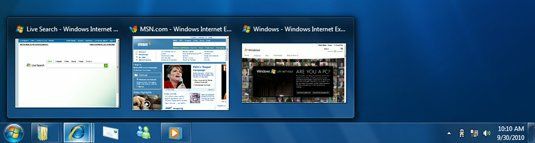
The biggest gain since the first time in the debut of Windows 95. Windows 7 is no longer displays a small icon application complete with the name of the application, but only large icons similar to Mac OS X. List window that is displayed when placing a mouse on the icon in the application also replaced with the user interface (UI) "Ribbon" that displays thumbnail window that opens in sideways.

Other tools that are connected to the computer as the camera will also appear in the taskbar with windows applications. Altogether these features make Windows 7 to appear attractive.

New taskbar in Windows 7

3. System Tray

Officially known as the "Notification Area," Microsoft finally allows users the tools to address the desktop area, which is often disorganized. Users can have any icons that are displayed in the System Tray, the icon to change the position and whether they are allowed to attract users with the notification.

4. Jump List

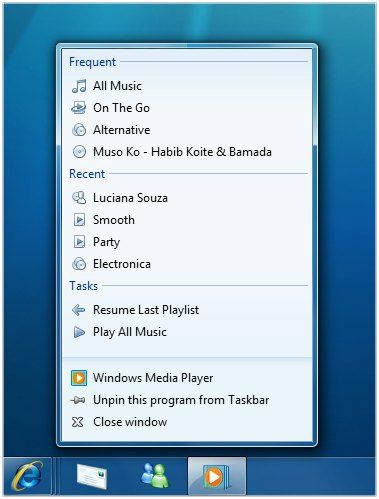
Jump menu list will appear in the Start Menu or when users click on one of the Taskbar application, provide several options on the user to perform various actions that supported the application. Figure below shows the jump list of Windows Media Player (WMP), which gives users the option to play the song, see the last songs played, and more.

Jump list

5. User Account Control (UAC) Better

UAC is one of the features that most users of Windows Vista doghouse. Now besides the "On" and "Off," users can choose to UAC only appear when installing an application or an application to change the configuration of Windows only. Not yet known whether these changes enough to make the UAC from the enemy into a friend, but at least this change will make Windows more friendly UAC.

Configuration page UAC in Windows 7

6. Performance

Microsoft said that they do a lot of changes to improve performance and stability of Windows 7, such as reducing the boot time to enable some applications in parallel, the new memory management methods and more. While this is still too early to discuss performance, we must await the arrival of the version that is almost finished to get him the means, but according to Technologizer, Windows 7 feels very quickly operated in a Dell laptop Microsoft loaned - and clean from the bloatware.

7. Stage Device

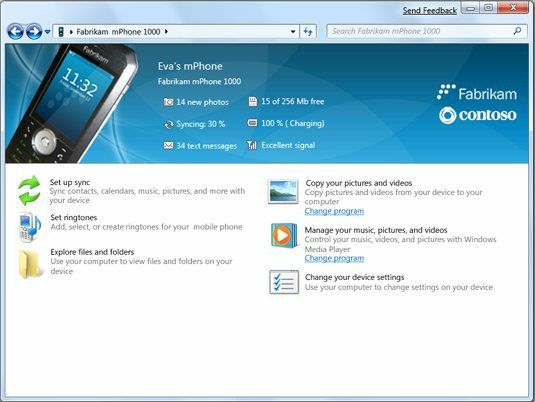
This new feature to collect all related peripherals in one place for easy user such as configuration, features, documentation services and even the purchase of printer ink and others.

Device Stage W7

8. Libraries

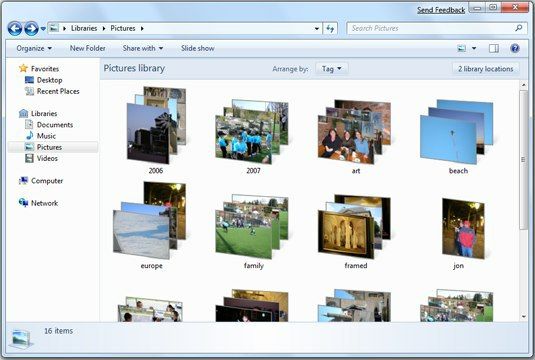
If you already know the concept of the library for songs such as the itunes, the concept of the library in Windows 7 also will not be foreign to you. This feature collects all the files on your PC to type in each library for easy management of the media. SFor example, all the images from all PC and the network will be collected in a photo library that can be accessed in one place like the image below.

Libraries feature of Windows 7

9. HomeGroups

Windows 7 to introduce a new feature called HomeGroups network that aims to ease some of the computer network to share files and peripherals - as if all that is located on a PC the same. Although the features of Windows Networking since it is always the same aims, in fact configuration to use the network printer is still too difficult for most users.

10. "Peeking" (tout)

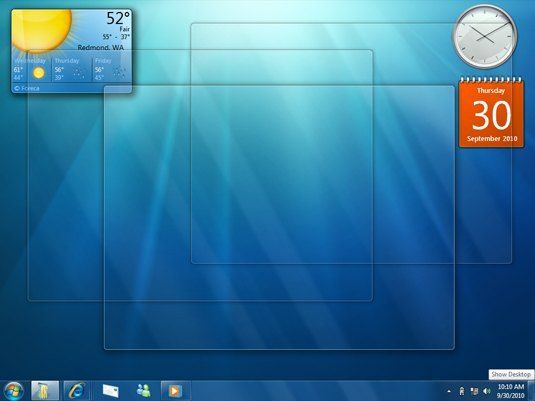
Peeking features in Windows 7 easier for users to quickly read the content in one window without the need to interact with the window. Placing mouse over the thumbnail window on the Task Bar will change all open windows except for a transparent window is selected. S In addition to "snoop" window applications users can also tout the Windows desktop.

Peek features in Windows 7

11.Sidebar Not Used More

Jika dibandingkan dengan widget Mac OS X yang dapat ditempatkan di desktop , perbedaan paling mencolok dari gadget Microsoft adalah peletakannya pada sidebar di sebelah kanan layar. If compared with the Mac OS X widgets that can be placed on the desktop, most colorful difference from the Microsoft gadget is laying it sidebar on the right of the screen. In W7, the sidebar is removed because they use too many places there and the gadget can now be placed directly on the desktop. Despite this fact can also be done in Vista.

12. ITunes Compatibility

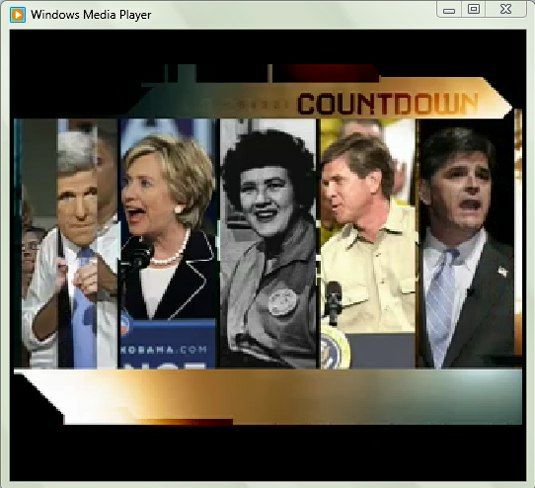
W WMP format now supports two media favorite Apple: AAC for audio and H.264 for video. WMP also can find the iTunes library on the existing network and play the content. Apple Fairplay DRM is not supported, but somehow I play a video podcast that beresolusi sizable visible in the bad WMP.

Podcasts low resolution in WMP

13. WMP is minimal

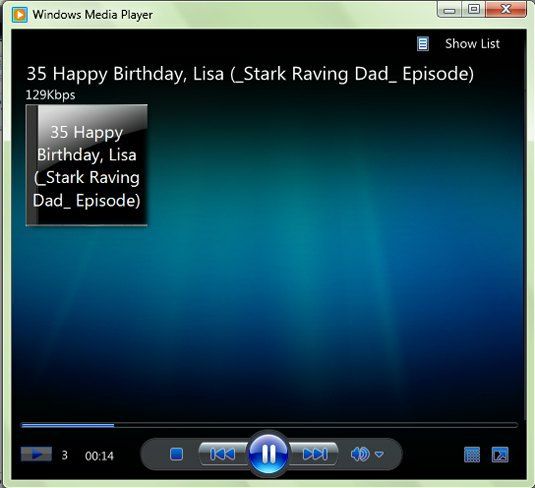
Ke When you right-click on a media file in Windows Explorer and use WMP to play, WMP will appear in a minimalist mode that does not dominate your desktop. You also can play the media preview pane in Windows Explorer without the need to launch the WMP at all.

Windows Media Player with the minimalist view

14. Streaming Multimedia

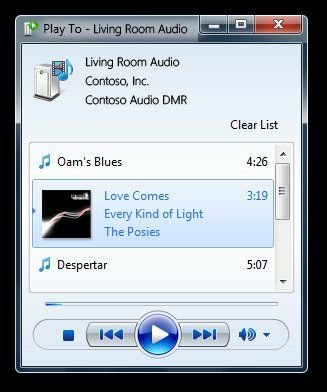
W7 add features delivery media files from PC to the various tools that support streaming music such as the Sonos system through the network. Microsoft said that the W7 will change to the file in a format that can be played by your media player. This also means that Microsoft is again approaching the last aspiration Bill Gates made the Windows media center at home. . Media Center version of Windows 7 also get a big upgrade.

Playing the media from the network through the Windows 7

15. Automatic window settings

Slide window near the edge of the right or left of the window will directly change the size of a half screen. This is intended to facilitate you arrange two windows side by side in (such as the browser or Word documents) so you can easily work on the two windows at once.

16. Finding An All Places

W7 feature named "Search Federation" allows you to mengikutkan various computer, network and storage media sites to search in Windows 7.

Federated search in the W7

17. Themes

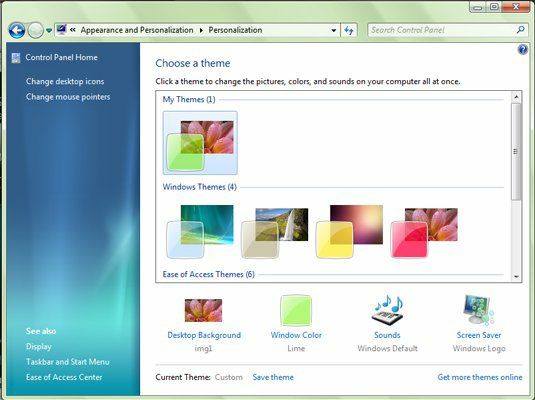
Microsoft is no longer deliver major changes in features in Windows customize the theme. Di W7 In W7 Microsoft provides a new theme that voters better with the preview feature in the original size and allow you to save custom themes with just a few clicks. Microsoft also plans to change the name of a Themes Styles.

Configuring themes in Windows 7

18. Windows Live

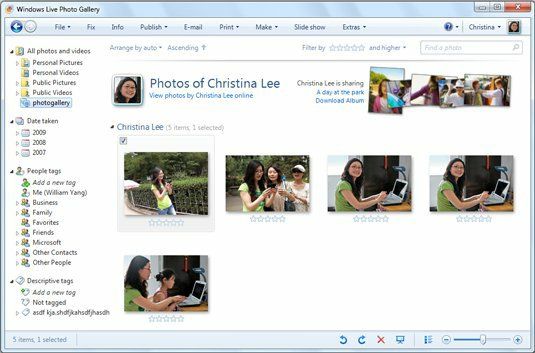
Officially, Microsoft has little to fix the applications on the W7, does not like Vista. Applications Photo Gallery, Movie Maker and email has been downloaded for free to be called Windows Live Esentials, although Microsoft still hopes the various PC vendors will resemble the Windows Live Essentials, in which they sell.

Windows Live Photo

19. New Paint

Windows Paint is a lot to remember to get big upgrade, now appear with the Ribbon UI of Office 2007 that has now become standard in many Microsoft applications. Although many consider Paint.net as an alternative replacement for Paint better.

Paint a new version of Windows 7

20. Touch Screen Features

Windows 7 is the first version of Windows that supports multi-touch that allows you to control the OS with both hands. Many still doubt whether the multi-touch will merevolusi the PC world as he merevolusi world's mobile phone. Currently there are almost no PC outstanding in the market that supports features touch screen other than the TouchSmart from HP and Dell Latitude XT. (via Technologizer )
source :udaramaya.com
Wednesday, January 21, 2009

Microsoft Tweaks Hardware Ratings For Windows 7


Microsoft says it has included new PC configurations in its hardware ratings for Windows 7. The Windows Experience Index has two more categories than the ratings for Windows Vista and 7.9 is now the highest score. Microsoft said the WEI now includes new technologies, including sold-state drives, multi-core processors, and graphics adapters

Microsoft Relevant Products/Services says it has tweaked its Windows Experience Index (WEI) for Windows 7 to take into account new PC hardware configurations. Introduced with Windows Vista, Microsoft's PC rating system is compiled by measuring the relative capabilities and configuration of each machine's components.

The goal of WEI is to help consumers buy hardware, programs and software matched to their computer's score. The WEI does not measure the interactions of components under a software load, but rather characteristics of the hardware, noted Microsoft Senior Vice President Steven Sinofsky.

"As such it does not -- nor cannot -- measure how a system will perform under your own usage scenarios," Sinofsky said. "Thus the WEI does not measure performance of a system, but merely the relative hardware capabilities when running Windows 7."

WEI Scoring

For Vista and Windows 7, the five areas scored include processor, memory, general desktop graphics, gaming graphics, and primary hard disk.

"The overall Windows Experience Index is defined to be the lowest of the five top-level WEI subscores, where each subscore is computed using a set of rules and a suite of system assessment tests," said Michael Fortin, an engineer in Microsoft's Windows Core Operating Systems Division.

PC buyers will be able to follow some general guidelines to understand the experiences that a PC with a given score range can be expected to deliver. "These Vista-era general guidelines for systems in the 1.0, 2.0, 3.0, 4.0 and 5.0 ranges still apply to Windows 7," Fortin said.

Though the scoring areas for Windows 7 are the same as Vista, the actual rules for scoring devices have changed "to reflect experience and feedback comparing closely rated devices with differing quality," Fortin explained. This makes the WEI more indicative of actual use, he said.

New Levels

Moreover, scoring levels 6.0 and 7.0 have been added to Windows 7 -- with 7.9 the maximum possible score. The two new levels were designed to capture the rather substantial improvements seen in key technologies as they enter the mainstream, including solid-state disks, multi-core processors, and higher-end graphics adapters, Fortin said. The amount of memory in a system is also a factor.

"Of course, adding new levels doesn't explain why a Vista system or component that used to score 4.0 or higher is now obtaining a score of 2.9," Fortin said. "In most cases, large score drops will be due to the addition of some new disk tests in Windows 7."

For gaming users, Microsoft expects systems with gaming graphics scores in the 6.0 to 6.9 range to support DX10 graphics and deliver video at frame rates of 40 to 50 fps and a resolution of 1280x1024 pixels, Fortin said. "In the range of 7.0 to 7.9, we would expect higher frame rates at even higher screen resolutions," he added.

Microsoft's new WEI scores also are intended to help game developers decide how best to scale their experience on a given system.

"Graphics is an area where there is both the widest variety of scores readily available in hardware and also the widest breadth of expectations," Fortin said. "The extremes at which CAD, HD video, photography and gamers push graphics compared to the average business user or a consumer -- doing many of these same things as an avocation rather than vocation -- is significant."

source : toptechnews.com

Other related articles :

- Windows 7 will be in a free by Microsoft
- How to Change the Windows 7 Default Control Panel View
-
How to Customize the View in the Services Window in Windows 7
-
Free Windows 7 Transformation Pack Download
- Free Windows 7 Themes For Vista and XP
- 20 New Features of Windows 7
- Free Download UxTheme Patch for Windows 7


Saturday, April 25, 2009

Windows XP Mode' revealed for Windows 7


Remember that major announcement that was planned for Windows 7 a while back? Well, it's finally here, revealed on Paul Thurrott's Windows SuperSite. So, what is it? It's a feature of Windows 7 called 'Windows XP Mode'.


So, what exactly is this new mode? As you can probably tell from the name, it's a method to provide better compatibility in Windows 7, and to pull it off with as little trouble as possible. It's also dubbed XPM, or formerly Virtual XP. According to Thurrott, "XPM is built on the next generation Microsoft Virtual PC 7 product line, which requires processor-based virtualization support (Intel and AMD) to be present and enabled on the underlying PC, much like Hyper-V, Microsoft's server-side virtualization platform. However, XPM is not Hyper-V for the client. It is instead a host-based virtualization solution like Virtual PC; the hardware assistance requirement suggests this will be the logical conclusion of this product line from a technological standpoint. That is, we fully expect future client versions of Windows to include a Hyper-V-based hypervisor."

XP Mode will bring a Virtual PC-based environment, as well as a fully licensed version of Windows XP SP3, free for all owners of Windows 7 Professional, Enterprise and Ultimate editions. This is good from a commercial point of view. Earlier, Microsoft could happily say that Windows 7 was just as compatible with software as Windows Vista, but now they can add 100% compatibility with Windows XP, too. So, for you IE6 users, you're in luck. Do not expect this to run like a proper Virtual PC; that being, a separate operating system running within a window. XP Mode will integrate itself with the Windows 7 desktop, and so the older software will run just like a normal Windows 7 application. Essentially, this is two operating systems running under an updated desktop.

Thurrott expects to have screenshots up of it running shortly, and also look forward to seeing an in-depth guide of it on Within Windows very soon. Neowin will publish more information as it arrives. Thoughts?


Other Article:
- How to Change the Windows 7 Default Control Panel View
-
How to Customize the View in the Services Window in Windows 7
-
Free Windows 7 Transformation Pack Download
- Free Windows 7 Themes For Vista and XP
- 20 New Features of Windows 7
- Free Download UxTheme Patch for Windows 7

Sam Symons - neowin.net


Thursday, August 27, 2009

MSI Launches Wind Top AE2010 20-inch All-In-One Desktop


MSI just announced its next-generation all-in-one desktop PC, the Wind Top AE2010. This step up from the previous AE1900 is a 20-inch model with a 1600 x 900 touchscreen, AMD Athlon X2 Dual Core 3250e processor, and an onboard ATI Radeon 3200 graphics card with DDR3 128MB memory. The AE2010 also has 4GB of DDRII 533MHz SDRAM, a 320GB hard drive, 6 USB ports, and a 4 in 1 card reader. Look for this new model to be available next month for a starting price of $649.99.


CITY OF INDUSTRY, CA – August 26, 2009 – MSI, a world-wide leading manufacturer of computer components and systems, is excited to announce the next-generation all-in-one desktop PC, the Wind Top AE2010. The AE2010 is upgraded with an AMD Athlon X2 Dual Core processor for increased computing power and features an efficient touch-enabled All-in-One PC with a crystal clear 20-inch widescreen. The improved performance and beautiful form factor combined with EPA ENERGY STAR Version 5.0 efficiency rating provides users with a PC powerful enough for everyday computing and aesthetically pleasing enough to have as a design centerpiece.

The new AE2010 also includes a VGA input and output allowing the user to utilize the All-in-One PC as a monitor or transfer video data to another television or computer screen. Additionally, graphics capabilities have been improved via the onboard ATI Radeon 3200 graphics card with DDR3 128MB VRAM. Users will now experience brighter colors, sharper contract and significantly improved picture clarity. Lastly, design functionality has been improved with the addition of a VESA standard wall mount. Whether you choose to set on a countertop or mount on the wall, the AE2010 is poised to change in-home computing.

The MSI Wind Top AE2010 features touch-enabled applications, wireless connectivity, SuperMulti DVD Rewriter and a built-in webcam and microphone for maximum personal computing. Whether you are sharing and editing photos, videoconferencing, browsing the web or completing school or work products, the AE2010 provides the tools to get the job done efficiently and in style. Starting at $649.99, the AE2010 offers a tremendous value proposition for any computing scenario.

The AE2010 also features a 320 GB hard drive, 6 USB ports, 4-1 card reader and a color-matched multimedia keyboard and mouse. The ultra-silent, state-of-the-art cooling system eliminates traditional cooling fan noises and keeps the noise level no more than 26 decibels. As with all MSI All-in-One PCs, the AE2010 is engineered to consume up to 75% less energy than traditional desktop PCs.

System Specifications


MSI Wind Top AE2010-02SUS
CPU :AMD Athlon X2 Dual Core 3250e Processor
Operating System :Genuine Windows Vista® Home Premium (with Free Window® 7 Upgrade
coupon)
Chipset :AMD RS780G and SB710
Graphics :ATI Radeon HD 3200 Graphics Core (Side Port DDR3 128MB memory)
Memory :4GB DDRII 533MHz SDRAM on board
Display :20-inch Touch Widescreen (16:9) 1600 x 900 High Definition
HDD :320GB SATA Hard Drive/5400RPM
ODD :Tray-load DVD Super Multi rewriter drive, support dual-layer
burning
Card Reader :4 in 1 (SD/MMC/MS/XD)
I/O :1 x DC-in jack, 6 x USB 2.0, 1 x E-SATA, 1 x LAN jack (RJ45), 1 x
Mic.-in, 1 x Headphone-out, VGA-in and VGA-out
Wireless :802.11 b/g/n
LAN :10/100/1000 Gigabit LAN
Webcam :1.3MP Webcam with Microphone
Sound :3W x 2 SRS Premium Sound Technology
Dimension :15.46” x 20.07” x 2.15”
Keyboard / Mouse :Color-matched multimedia keyboard and mouse
Support :VESA Wall Mount, VGA-in (monitor mode) / VGA out (dual display)
Software :Microsoft® Office 2007 (trial version), MSI Wind Touch, MSI Easy Viewer, MSI Burn Recovery, MSI Controller, MSI Q-Face, MSI Easy Face, WinRAR (trial version), SoftStylus™, Adobe® Reader, BurnNow, Cyberlink® PowerProducer, Cyberlink® PowerDVD8, Cyberlink® PowerDirector, Cyberlink® Power2Go, Cyberlink® DVD Suite, Cyberlink® PhotoNow, Gimp2, Dia, Ganttproject, FreeMind, GeoGebra, Java 6, Microsoft® DirectX, Microsoft® .NET Framework 3.5, Microsoft® MSN
Power Supply :External 90W Power Adapter with Active PFC

Via: MSI |hothardware
Friday, April 10, 2009

Samsung NC20 U.S. Version Reviewed


Some might argue that Samsung's NC20 isn't really a netbook, with its spacious 12.1-inch screen and full-size, notebook-style keyboard. But its VIA Nano processor, long battery life, lack of an optical drive, and basic selection of ports perfectly fit the netbook mold. Whatever you call it, the NC20 does an excellent job bridging the gap between traditional netbooks and notebooks, with the price, battery life, and most of the portability of a netbook, combined with the comfort and usability of a larger ultraportable laptop....


At 1.2x11.5x8.5 inches and 3.3 pounds, the NC20 lacks some of the toss-in-a-shoulder-bag convenience of the 9- and 10-inch netbooks, but it’s still extremely portable. In fact, it's only 1.2 inches wider and deeper than Samsung's 10-inch NC10 and the same thickness. The chassis of the North American model is glossy black on the outside and flat black on the inside, with chrome trim around the edges. (Overseas, the NC20 is offered in white.)

The standout feature of the NC20 is its bright 12.1-inch, 1,280x800 screen. Text is crisp and is rendered at about the same size as on a 1,024x600 netbook. The extra screen resolution makes a huge difference in usability, requiring less scrolling when viewing Web sites, offering more room for toolbars when using productivity applications, and providing better compatibility with games. The panel has a glossy finish, so glare and reflections might be an issue in some lighting conditions.


Accommodating the large screen gave Samsung room to include a full-size keyboard that's extremely comfortable for touch typing. The layout is very good overall, with a couple of minor oddities: The space bar is slightly truncated to make room for the tilde key, which is dropped to its left, and the Windows logo key sits on the right side of the space bar. The 3.1-inch (diagonal measurement) touch pad is much larger than what most netbooks offer, making for comfortable, accurate pointer control. A single rocker button allows you to press on the left or the right; it's comfortable to use, but we prefer distinct left and right buttons.

The rest of the specs are typical netbook fare: Windows XP Home, 1GB of RAM (though it’s expandable to 2GB, which we appreciate), a 160GB hard drive, VGA output, 802.11b/g wireless and 10/100Mbps Ethernet, Bluetooth 2.0, a trio of USB 2.0 ports, and headphone and microphone jacks. There's also a 1.3-megapixel Webcam and an SD/MultiMediaCard memory slot.

What's not typical is the processor. The NC20 is the first netbook to use VIA's new 1.3GHz Nano U2250 processor. This new CPU is much more competitive, performance-wise, with the Intel Atom than the anemic VIA C7-M used in the HP 2133 Mini-Note. On most of our tests, the Nano’s performance fell squarely between the Intel Atom N270 and the newer N280 model. For instance, on Cinebench 9.5, the NC20 scored 141, compared with 134 for the N270-equipped Acer Aspire One AOD150 and 148 for the N280-equipped Asus Eee PC 1000HE. The HP 2133, which uses the older VIA C7-M processor, by comparison, scored just 23 on this test. It managed a strong Cinebench 10 score of 882.

The NC20 fell a bit behind the Atom crowd on our Windows Media Encoder test, however, taking 29 minutes and 16 seconds, compared with 28:21 for the Aspire One and 22:11 for the Eee PC 1000HE. On the other hand, it left the Atom netbooks in the dust on our iTunes encoding test, finishing in 13 minutes and 58 seconds, versus 21 minutes for the Aspire One and 17:37 for the Eee PC 1000HE. In fact, this iTunes score is the best we’ve ever seen for a netbook—period. Overall, the general performance feels about the same as on the Atom notebooks we've used. There is one exception: The NC20 feels more sluggish than Atom-powered netbooks if you try to work while a background task is using 100 percent of your CPU power, because the Nano lacks the Hyper-Threading feature that helps the Atom remain responsive while multitasking.

The NC20's Chrome9 graphics proved slightly faster than the Intel 945 graphics found on most netbooks. The system scored 132 on our 3DMark06 test, compared with 92 for the Intel 945-equipped Eee PC 1000HE—the fastest score among netbooks with the exception of the Asus N10Jc, which had switchable discrete graphics. That said, the 3D capabilities are still very basic, suitable for older games only. Video playback of standard-definition DVD video and high-quality YouTube clips is smooth, but the NC20 can't keep up with 720p video files. Audio clarity is very good, though volume could be a bit louder.


On our Wi-Fi video streaming test, battery life was an impressive 4 hours and 50 minutes. While that's just over an hour shy of the record-holding Asus Eee PC 1000HE, it's almost an hour longer than the other 12-inch netbook we tested, the Dell Mini 12. The North American NC20 ships with a 5,900mAH six-cell battery, offering better runtime than the 5,200mAH battery found on the overseas model.

Samsung includes a three-month trial version of McAfee Security Center, the Samsung Recovery Solution backup software, and a variety of utilities for managing power settings, hotkeys, and other system settings.

At this particular moment in time, the choice is between the $549 NC20 and the $399 1000HE. While we loved the 1000HE for its long battery life, excellent performance, and comfortable keyboard, it’s still limited by its 10-inch screen with 1,024x600 resolution (although it does offer two other resolutions that cheat the system a bit). We like the NC20 for its larger screen, better resolution, and still impressive performance—especially with iTunes and graphics—and battery life. The price is a sticking point, however, at $150 more than the 1000HE. Overall, its VIA Nano processor proves a worthy challenger to Intel's Atom, competition that's likely to make the netbook playing field even more interesting as 2009 progresses.
Check out our slideshow!
Price (at time of review): $549.99

source : computershopper
Sunday, April 12, 2009

Acer AspireRevo, Desktop- the size of Book


Acer has released a PC, on Tuesday (07 / 4) of the performance class will bring the PC into a PC-based Atom processor. Acer AspireRevo, is the first Atom-based PC that uses Nvidia chipset Ion, a package with the graphics card Nvidia GeForce 9400M, a graphics card that is used in the 13 inch Apple MacBook and MacBook Air. Acer AspireRevo has seukuran Hardcover book form, with the Nvidia graphics card to combine with the processor Intel Atom.


To design, Acer AspireRevo power more sparingly, but also work more slowly rather than chip architecture Intel Core 2 Duo. While for external features Acer AspireRevo very little, although a little thick compared to the size of a laptop, but small in size, such as similar books. Internally, devices AspireRevo Acer akan test Nvidia graphics card is in, because the previous pair netbook with Atom processor and graphics card Nvida able to give a better performance than the only Intel chipsets with the Atom.

"AspireRevo is a device that is suitable for the room because the Nvidia graphics Ion provides a brilliant experience, with digital photos, watch videos, play games and family-friendly." Said Gianpiero Morbello, corporate vice president for Acer.

Nvidia's ability to record AspireRevo based Ion:

* Can be run on Windows Vista Home Premium
Quality * 1080p HD video with 7.1 audio
* Own popular games like Spore, Call of Duty 4, and Sim City 5
* DirectX 10 Graphics display with advanced
* Acceleration and video transcoding using the Nvidia CUDA technology
* Desktop-based Nvidia Ion is sold with a price below the estimated $ 300

source : beritanet
> swap

Wednesday, March 11, 2009

Free Download PCMAV 2.0 Valkyrie (Final)


PCMAV 2.0 Valkyrie (Final)

PC Media Antivirus (PCMAV) 2.0.0 - Valkyrie
Copyright (c) 2006-2009 Majalah PC Media
Pinpoint Publications Group

———-
FEATURE
———-

a. The Best Antivirus in Indonesia
b. Made in Indonesia.
c. Fast Detection.
d. Documents Safe.
e. System Recovery.
f. Totally Clean.
g. Accurate.
h. Pro-Active Protection.
i. Automatic Updates.
j. New Virus Detection.
k. Scan Entirely.
l. Dual-Core Engine Antivirus.
m. Friendly User Interface.
n. PORTABLE (Without Installation)
o. Trusted Expert.
p. PC Media Fully Support.
q. FREE.

a. IMPROVED! New module memory implementation management and searching file which are faster and more stable.
b. NEW! IntelligentScan (iScan) engine for ClamAV to boost the acceleration when Clamav engine is used.
c. NEW! RealTime Protector (RTP) for Vista dan Windows 7.
d. NEW! Virus Quarantine to isolate the suspected virus. (You may have the file back in case of false alarm).
e. NEW! Virus Submission integrated in the Virus Quarantine.
f. NEW! PC Media Updates Manager to have automatic updates.
g. IMPROVED! First integration PCMAV Cleaner RTP.
h. IMPROVED! Scan feature through right-click Explorer (/REGSHELL)
i. BUG FIXED! Heuristic false alarm in some programs and script.

——————————————–
NEW VIRUS IN PCMAV 2.0 (54 VIRUS)
——————————————–
Ahole
Ahole.inf
Aurel
Aurel.vbs.B
Autoit.CL
Autoit.CM
Autorunme.D
Dungcoi.D
GameLover
GameLover.exe
GameLover.htm
Gerubug
Hidea
Joke.StartKiddies
Labunreke
Labunreke.bat.A
Labunreke.bat.B
Labunreke.bat.C
Labunreke.inf
LoveStory.B
Manokwar
Manokwar.inf
Nabe.A
Nabe.B
Nabe.C
Nginul.B
PisangBakar.A
PisangBakar.B
PisangBakar.bat
PisangBakar.txt
Recycler-Kkrunchy.C
Recycler.Q
Recycler.Q.inf
Recycler.R
Recycler.S
Recycler.T
Recycler.T.inf
Recycler.U
Recycler.V
Shinigami
Shinigami.inf
Vemo.A
Vemo.B
Vemo.C
Vemo.D
Vfp
Vfp.bat
Vfp.inf
Vires.H
Vires.I
Wordhb
Xlove
Yeanqin
Yuyun.vbs.C

Download PCMAV 2.0 Valkyrie Final:

To Download Click Here

note : Choose free user


source : megasoft-rapid
Saturday, April 4, 2009

Windows Touch Logo, Coming Soon on PC

Multi-touch controls on the Apple iPhone will soon be built on the Microsoft Windows 7. Windows 7 will receive a Windows Touch brand logo will be the first class to interact with a PC without a mouse and keyboard. Microsoft believes that the multi-touch PC become a popular product in the retail, for the public, on the laptop and the PC kitchen '. Some of the Windows machine is ready for input to the touch and Microsoft are now preparing the program "Touch Windows Logo", as in the logo "Designed for Windows 7", "Intel inside", "nVIDIA graphics".

The program can help provide understanding to the customer will be the Touch is a Windows optimization.

Windows Touch will control is equipped with features such as tap and double tap, drag, scroll, zoom, criticism (flick), and rotation. In engineering Windows 7 blog, the team led the development of Touch, said that the touch will be more knowledgeable as requirenment hardware. According to the blog, the development of Windows Touch is inspired from the Microsoft Surface table computer.

Meanwhile, according to Chris Bernard, one of the Evangelist from Microsoft interface, gesture and touch are two big changes that, showing how to interact with computers that use a GUI (Graphical User Interface) for the first time, and the use of keyboard and mouse. "We make sure the user will get the full experience of Windows 7 is indeed." Said Bernard.

While some applications optimized for touch features such as Internet Explorer and Windows Media Center, but basically there is a touch control levels. "For example, if users try to touch scrolling on the window that does not have touch control, the machine can detect it as a variation scrollbar scroll and then run." As mentioned in the blog. To help distinguish which of the gesture or touch, then Microsoft has been analyzing the sample of the hundreds of thousands of people.

Windows 7 will be the final version is coming soon in 2010, and Windows 7 to RC (Release Candidate) will be tested at the end of May to come. (H_n)

source : beritanet

Tuesday, April 28, 2009

Some Windows 7 Editions to Offer Free Virtualized Windows XP


Once Windows 7 ships, Windows 7 Professional, Enterprise, and Ultimate edition users will be able to download a free Windows XP Mode upgrade from microsoft, WinSuperSite's Paul Thurrott reports. What Thurrott calls XP Mode will enable these versions of Windows 7 to be almost perfectly compatible with Windows XP applications. Essentially, Windows 7 will have "Windows XP inside" when XP Mode is installed.


What is XP Mode? Officially known as Virtual Windows XP, it combines a hardware-accelerated host virtualizer based on Virtual PC with a fully licensed copy of Windows XP Professional SP3. While, at first glance, this might sound like little more than a more convenient replacement for downloading a copy of Virtual PC 2007 and scrounging up a Windows XP Pro disc and license from a dead PC, there's a lot more to Virtual Windows XP.

As the WinSuperSite screenshow reveals, Virtual Windows XP will be able to share your system's USB drives, and when you install apps to Virtual Windows XP, your Windows 7 menu will automatically be updated with shortcuts, enabling you to run Windows XP programs in separate virtualized windows on your desktop. Although the virtualizer used by Virtual Windows XP is a host-based virtualizer, these features put it miles ahead in usability compared to Virtual PC 2007 plus Windows XP. And, because Virtual Windows XP's virtualizer requires hardware virtualization support, it won't bog down your system the way an unaccelerated virtualization host will do.

Any catches? Unless Microsoft changes its mind between now and when Windows 7 is released, it looks as if most home users who want a fast virtualized Windows XP running on Windows 7 will need to pony up for an upgrade to Windows 7 Professional. The good news is that Windows 7 Professional includes all of the multimedia goodness of Home Premium plus essential business features.

The second possible catch is the need for hardware virtualization support. Make sure your system includes a processor with hardware virtualization support. The Core i7 family includes VT-x hardware virtualization, but support in other processor families is spotty, and the low-end Pentium Dual-Core and Celeron processors don't support VT-x at all. Over on the AMD side, current versions of the Turion 64, Phenom, and some older Athlon 64 and X2 processors include AMD-V hardware virtualization.

If you've been on the fence about moving your personal or business PCs to Windows 7, how does Virtual Windows XP change the picture for you? Hit Comment and sound off!

source : Mark Edward Soper -
maximumpc
Thursday, March 5, 2009

Asus keyboard Changed Being PC

by : Indah PM
Never see the keyboard into a PC? Eee keyboard response. At the bodinya, users will find the HDMI connection and a wireless touch screen of 5 inches. So, here are a part of the keyboard mayor, while the PC into the minor.

Asus CEO, Jerry Shen says that this keyboard is buatanya produced in two different models, namely the cable and wireless (wireless). For the cable version, the Eee Keyboard ber prices on a range of U.S. $ 400, while for the wireless version will determine the price more expensive, about U.S. $ 600.

Eee keyboard will resemble some of the components that should also have a computer in the standard. That includes the processor Intel Atom 1.6 GHz clock speed (generally used in the sub notebook), 1 GB RAM capacity, the media store type Solid State Drive (SSD) 16/32 GB capacity, features Bluetooth and WiFi connections. However, the available wireless HDMI port, two USB 2.0 ports, VGA, HDMI, and audio in / out. End users do not need to buy a CPU, because all the components in a PC to ditanamkan Case (CPU) on the Eee keyboard.

According to the news source that we lansir, Asus Eee keyboard will swing to the market in May or June.

source : infokomputer
Sunday, January 4, 2009

BlackBerry Storm 9530 Smartphone (Verizon Wireless)

Product Description

Click here to see the price and where you buy or order this product

Amazon.com Product Description
Designed to satisfy the needs of both consumers and business customers, the BlackBerry Storm smartphone offers a revolutionary touchscreen that dramatically enhances the touch interface and enables easy and precise typing. The world's first "clickable" touchscreen responds much like a physical keyboard and also supports single-touch, multi-touch and gestures for intuitive and efficient application navigation. Whether traveling to Europe or Asia, the Storm provides globetrotters the freedom of reliable global connectivity with Verizon Wireless's reliable, high-speed 3G CDMA network here in the United States and compatibility with GSM networks abroad.


The SurePress touchscreen with tactile click response allows you to accurately navigate and type messages on the BlackBerry Storm.


The Storm's built-in accelerometer automatically switches the screen between landscape mode and portrait modes as it rotates. See larger version.
It's compatible with the V Cast Music and V CAST Music with Rhapsody services, which enables you to purchase songs through your phone and download them via Verizon Wireless's fast EV-DO data network. You'll also benefit from the phone's A-GPS receiver, which enables you to access Verizon Wireless's VZ Navigator service for turn-by-turn directions. Other features include a 3.2-megapixel camera/camcorder, Bluetooth connectivity for handsfree devices and stereo music streaming, 1 GB internal memory, MicroSD memory expansion to 16 GB, support for up to 10 personal and corporate email accounts, access to popular instant messaging services, and up to 6 hours of talk time.

Verizon Wireless Service
With support for the EV-DO high-speed data standard, you'll enjoy fast access to the Internet and Verizon Wireless's multimedia services (additional charges applicable), with average download speeds ranging from 400 to 700 Kbps and peak rates up to 2 Mbps. (Learn more about where EV-DO coverage is offered.) The V Cast Music service enables you to download songs instantly to your phone, or purchase music through your PC and transfer the files to your phone. If purchased from your phone, you'll receive two copies of the song: a Windows Media Audio Pro Plus format at 64Kbps stereo is sent to your phone, and a Windows Media Audio 9 format at 160Kbps stereo is sent to your account in the V CAST Music online store for downloading to your PC. V Cast Music offers nearly 2 million songs, with more being added all the time.

In addition to the V Cast Music service, this phone is also compatible with Verizon Wireless's V CAST Music with Rhapsody, which enables you to access this exclusive digital music service for RealNetworks and for MTV Networks. V CAST Music with Rhapsody delivers unlimited monthly access to music on up to three Rhapsody-compatible mobile phones and players and online on multiple PCs and Web browsers. In addition, customers who purchase music over-the-air are able to download the master copy of the songs or albums to their PCs free of digital rights management (DRM) software that restricts how and where music can be played.

The V Cast Video service enables you to stream or download video clips to your phone from a variety of news, entertainment, sports, and weather channels, including CNN, ABC News, E!, CBS Sports, The Weather Channel, and VH1.

With this GPS-enabled phone, you'll be able to access Verizon Wireless's VZ Navigator service (additional charges applicable) for voice-prompted turn-by-turn directions, heads-up alerts, local search of nearly 14 million points of interest in the US (such as landmarks, restaurants and ATMs), and detailed color maps. And Verizon Wireless's Chaperone service lets you easily locate your loved ones from your cell phone phone or PC in real time. After defining a zone, such as an area designating a school or summer camp, you'll be sent an alert via text message when the Chaperone handset enters or leaves the zone.

With BroadbandAccess Connect (subscription required), you can use your smartphone as a modem for your notebook when you connect the two using a USB cable--or open a Bluetooth connection--enabling you to access the Internet or your company intranet. The tethered modem capability is ideal when you're traveling and need to use your notebook to check email, access corporate networks, or download large files like presentations and reports. And with BroadbandAccess Connect, you won't have to buy an extra PC Card or other devices.

With Visual Voice Mail, you can delete, reply and forward voice mail messages without having to listen to prior messages or voice instructions. Visual Voice Mail is the ideal tool for the busy mobile professional who may need to prioritize which messages he or she listens to first.


In addition to its messaging capabilities, the Storm features a 3.2-megapixel camera and multi-format media player. See larger version.
Global Connectivity
The BlackBerry Storm allows for global roaming--from Europe to South America to Asia--and also provides 3G data speeds on select international networks, giving you high-speed connectivity when you're abroad. The Storm offers Verizon Wireless's fast 3G EV-DO Rev. A/CDMA connectivity in the United States, and UMTS/HSPA (2100 MHz) and quad-band GSM/EDGE/GPRS connectivity for use outside the U.S. The Storm comes pre-installed with a SIM card, so customers who plan to travel abroad can activate global service at the time of purchase or by calling Verizon Wireless prior to leaving the U.S. For those who travel abroad frequently, the company's Global Value Plan offers discounted roaming charges on calls made to and from 130 countries.

Phone Features
The first BlackBerry to feature a touchscreen interface, the Storm's large 3.25-inch LCD (360 x 480-pixel resolution) actually depresses ever so slightly when the screen is pressed, giving you the distinct feeling that the screen is being pressed and released with a gentle "click"--similar to the feeling of a key on a physical keyboard or a button on a mouse. The "clickable" touchscreen gives you positive confirmation that you've made a selection, resulting in a highly-intuitive typing experience. In addition to the familiar navigation keys (phone, menu and escape) that are common to other BlackBerry smartphones, the Storm adds support for multi-touches, taps, slides and other touch-screen gestures, so you can easily highlight, scroll, pan and zoom for smooth navigation.

The BlackBerry Storm smartphone also features a built-in accelerometer, allowing its touchscreen to automatically switch between landscape mode and portrait mode as the you rotate the handset--RIM's SureType keyboard layout is available in portrait mode and a full QWERTY keyboard layout is available in landscape mode. Other relevant features, such as cut and paste, are only a touch away for the ultimate smartphone experience.


Blackberry's efficient SureType hybrid alpha-numeric/QWERTY keyboard appears in portrait mode.
The on-screen SureType hybrid alpha-numeric/QWERTY keyboard, first introduced with BlackBerry Pearl phones, places two letters on each button of the keyboard layout and the Storm automatically determines which letter is the intended one based on what it predicts you are trying to spell. SureType also learns the words you use most often, further enhancing your typing speed.

View your favorite web sites the way they were meant to be seen with the high-performance web browser that works in either portrait or landscape orientation. Navigating Web sites is fast and easy with the touch-screen interface that lets users double tap to zoom in and slide their fingers to scroll and pan. Icons along the bottom of the display allow for quickly accessing Web sites, switching between Page View and Column View as well as the ability to toggle between Pan mode and Cursor mode. The enhanced browser supports file downloading, streaming audio and video (RTSP), and built-in RSS support--enabling content from supported Web sites to be automatically pushed to directly to you.

Whether you're on the clock or out-and-about, the Storm has the tools to keep you productive. Access up to ten supported personal and corporate email accounts, including the most popular ISP email servers, using BlackBerry Internet Service. View and revise Microsoft Word, Excel and Powerpoint files using Word To-Go or Slideshow To-Go. And keep your schedule on track with the advance calendar function, which allows you to check appointments or make new ones in just a few clicks.

In addition to the industry's leading mobile email and messaging solution, the Storm supports text (SMS), picture (MMS) and instant messaging (IM) on today's most popular platforms as well as social networking sites. Take your social life on-the-go with Facebook for BlackBerry and Flickr Photo Uploader for BlackBerry applications (pre-installed on the Storm). A Mobile IM feature provides access to Google Talk, MSN, Yahoo!, Windows Live, and AIM instant messaging services.

Handsfree communication is easy thanks to the integrated speakerphone. This phone also provides Bluetooth wireless connectivity (version 2.0), and includes profiles for communication headset, handsfree car kits, and file transfer. With the A2DP Bluetooth profile, you can stream your music to a pair of compatible Bluetooth stereo headphones. You can connect your laptop (either via Bluetooth or wired USB) and enjoy dial-up networking--surf the Internet, send email, and access files from a server.

The media player can play movies smoothly in full-screen mode, display pictures and slideshows quickly and manage an entire music collection (compatible with MP3, WMA, and AAC/AAC+/eAAC+ formats). Playlists can be created directly on the handset and there's an equalizer with 11 preset filters--including Lounge, Jazz and Hip Hop--for customized audio ranges when using wired headphones or external speakers. The Storm has 1 GB of internal memory--enough to store 250 tunes--which can be expanded via optional MicroSD/SDHD memory cards (up to 16 GB in size).

Other features include:

  • 3.2 megapixel camera with variable zoom, auto focus and a powerful flash that also provides continuous lighting when recording video
  • Built-in GPS supports location-based applications and services, as well as geotagging of photos
  • An ambient light sensor that automatically adjusts backlighting for ideal screen viewing and an accelerometer that allows customers to view applications in either portrait or landscape mode by simply rotating the handset
  • Visual voicemail allows you to browse your in-box and choose the messages to listen to with just a few clicks.
  • Record and send verbal reminders to yourself and others with the easy-to-use Voice Notes feature, which allows you to recored, pause, and resume your voice notes in the push of a button.
  • Enhanced noise cancellation to offset background noise
  • Low-distortion speakerphone
  • 3.5 mm stereo headset jack
  • Polyphonic and MP3 real-music ringtones
  • MicroUSB connector for charging and data transfer
  • Removable battery
  • Bluetooth version 2.0 with the following profiles: A2DP (stereo music streaming), AVRC (remote control), HFP (hands-free car kits), HSP (communication headsets), DUN (dial-up networking), FTP (file transfer), PBA (transfer contacts)

Vital Statistics
The BlackBerry Storm weighs 5.5 ounces and measures 4.43 x 2.45 x 0.55 inches. Its 1400 mAh lithium-ion battery is rated at up to 6 hours of talk time, and up to 15 days of standby time. It runs on Verizon Wireless's 800/1900 CDMA/EV-DO frequencies while in the United States, and it can connect to 850/900/1800/1900 MHz GSM/GPRS/EDGE networks as well as 2100 MHz UMTS/HSDPA/HSUPA 3G frequencies when outside the U.S.

source : amazon.com

Wednesday, February 25, 2009

9 free antivirus programs for Windows


Keeping your Windows computer virus-free doesn't have to cost you a lot of money. Heck, it doesn't need to cost you any money. There are plenty of good options available for those of you on the hunt for free antivirus software.

Wait - free? Don't companies like Norton make a good business out of selling antivirus protection? Why would someone give it away? Developers of free antivirus solutions like Avast and AVG are counting on a couple of things. First, that you'll like the free offering enough to want to buy an upgraded version of their product. Second, that if enough home users talk about how much they love it that their "computer guy" at work might want to use it on the company's systems.

The free options listed after the break offer the same kind of protection as the boxed software you can buy at the store.

Two things to keep in mind:

First, as with other free software, some of the developers ask for support in the form of a toolbar install. They're all optional, so make sure to un-tick the checkboxes during the install if you don't want the toolbar.

Second, a number of the developers offer a non-free version on the free version's download page via a service called TrialPay. The totally free version is normally on the left, the TrialPay offer on the right - make sure you're clicking the link you actually want.

Avast Home Free


I see Avast's little blue sphere in a lot of system trays, and with good reason: it's one of the most recommended free Windows antivirus options. One nice thing about Avast is that the installer only installs the antivirus program – there's no toolbar or anything else to dodge. Definitions update automatically, scans can be scheduled, and the boot-time scan tool does a good job at uprooting even stubborn infections.

You do need to register for a product key, though Avast will never email you anything other than the confirmation message.

Get it from: Avast | FileHippo | Softpedia


AVG Free


AVG has been a popular free antivirus option for Windows users for a number of years. It provides solid protection against viruses and other malware, and there's no registration required. Virus definition updates are automatic, and scheduled scanning is supported. Version 8 ships with the optional AVG Security Toolbar, which may be a good idea for some users. It provides security ratings for known websites and provides a little added protection in your browser – a place some users desperately need it.

Be sure to watch for the toolbar install and opt out if you don't want it. Also pay attention on the download page: free link on the left, TrialPay on the right.


Get it from: Download.com | FileHippo | Softpedia


Avira AntiVir


Avira's offering is third on the list alphabetically and that's where it falls popularity wise on Download.com, just behind AVG and Avast. It's rated highly for fast and accurate scanning, and is easy on system resources. AntiVir's simple interface and solid protection make it a good choice for novice users.

One bothersome aspect is the nag screen that appears periodically to remind you about Avira's paid product. Also, on Avira's download page look on the left side for the completely free link - the right side is a TrialPay offer.

Get it from: Avira | FileHippo | Softpedia


BitDefender


Another lesser-known (but solid) option is BitDefender. In addition to virus and malware defense, BitDefender also includes a privacy protection feature that monitors web traffic and outbound mail for possible breaches. Its scanning engine is fairly speedy and detection rates are on par with more well-known software.

The download page is a bit like Avira's, so make sure you don't use the TrialPay offer on the right unless you really want to. The free download is on the left side.

Get it from: BitDefender | FileHippo | Softpedia


ClamWin


Unlike other programs on this list, Clam is not a realtime virus scanner, meaning it won't notify you the instant an infected file gets saved to your hard drive. Because of this shortcoming, ClamWin is probably not a good choice for novice users. It does, however, support scheduled scans and integrates with Windows Explorer so you can manually right-click and scan files. It also integrates with Microsoft Outlook and can remove infected attachments automatically.

You can get on-access protection with ClamWin by integrating it with WinPatrol or Spyware Terminator.

Get it from: ClamWin | FileHippo | Snapfiles


Comodo Internet Security


Comodo's free antivirus application comes as part of their Internet Security suite. Comodo's firewall software has always been very well-respected, but you can choose to only install the antivirus during the install if you prefer. It's a solid performer, with good scanning speed and detection rates, and few false positives.

Like AVG, Comodo packages a toolbar (called safe surf). It'll also prompt you to change your homepage, so just make sure to uncheck the boxes if you want to opt out.

Get it from: Comodo | Download.com | Softpedia


PC Tools Antivirus


PC Tools are the same people that produce Spyware Doctor, one of the most popular anti-spyware applications around (though not my personal choice). Its interface is simple and easy to understand for novice users, though advanced users are likely to be frustrated by the lack of more sophisticated options that are available in other free programs. Scheduled scanning is supported, as are automatic definition updates.

Get it from: PC Tools


Rising Antivirus


Even with the regal lion face logo, Rising hasn't garnered a lot of respect yet. Still, those who do use it seem very pleased with the protection it provides and also report that it's easy on system resources. A complete scan with Rising is a bit more sluggish than with more popular options, but most of you probably run scheduled scans when you're AFK anyway – so it's not a big downside.

It's regarded as a good choice for non-technical users.

Get it from: Rising AV | Snapfiles | Softpedia


Spyware Terminator


Spyware Terminator isn't an antivirus program on its own, but you can choose to integrate ClamWin during the setup process. Unlike installing Clam on its own, pairing the two applications provides realtime virus protection. It's regarded as a very good anti-spyware application, though reviews are mixed on its ability to handle antivirus duties.

As with AVG and Comodo, a toolbar install will be offered during the setup process.

Get it from: Spyware Terminator | FileHippo | Softpedia


If you're not sold on the idea of free antivirus and are looking to test drive some paid options, there are plenty available for download. Just about every major developer of antivirus software offers at least a 30 day trial of their product. Here are three solid choices you can take for a test drive.


Eset NOD32


NOD32 is the choice of a number of Download Squad crew members. It's very well-respected by system admins and technicians and one of the best programs available to protect your PC from infection. Downloading the current version gets you 30 days to try it out.

If you're so inclined, you can download beta versions or release candidates as well - and you'll get up to 6 months of free protection.


Kaspersky


Another option held in high regard by experienced users, the Kaspersky scanning engine is licensed by a number of other companies that provide antivirus software. Trial versions last 30 days.


Trend Micro


Trend has been a truster choice in coporate environments for a long time, though their PC Cillin software for consumers isn't as popular as some other tites. It's still a solid choice and provides good protection. Again, 30 days to try it out.


Other related articles :


- Prevent the virus from active autorun.inf with USB Firewall


- Beware, virus attacks' Hopeless' in First Year


- 10 Tips for Securing Computer When Vacation


- Tips for Reducing Risks are Computer Virus


- 7 Step to eradicate virus' K0pL4xZ '


- 4 Step Virus Prevention Conficker


source : downloadsquad.com